Video to MP3 Convert
- 4.1
- Rating
- 1.00M
- Installs
- Free
- Price

 Analysis by App-foxy
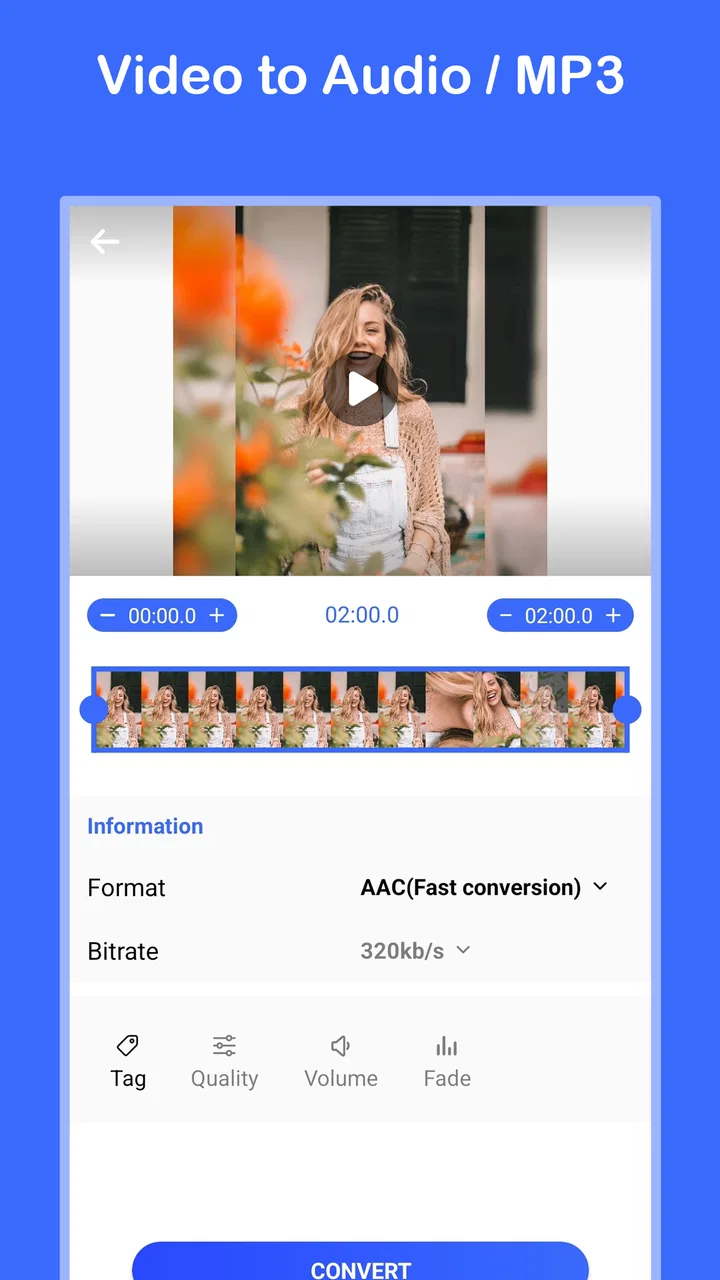
Turning a video into an audio file sounds like a small task, but the experience can become surprisingly awkward when an app is cluttered, slow to understand, or unreliable with everyday files. Video to MP3 Convert, from BDH Apps, takes a much narrower route: it is an Android app for extracting audio from video and saving it as MP3. After using it, I see the appeal immediately. It is not trying to replace a full video editor or become a media library. Its value is in handling one practical conversion job without making the user learn a complicated editing workflow.
I would recommend it to someone who regularly receives video clips and wants the sound separately, especially when the original video is longer or heavier than necessary for listening. It is free to install, suitable for Everyone, and has reached more than one million installs. Its average rating sits at 4.1 from around 56 thousand ratings, which suggests a broadly positive experience while also leaving room for the occasional rough edge that I noticed during normal use.
What the app feels like in everyday use
The first thing I appreciated is the clear purpose. Video to MP3 Convert is placed in the video players and editors category, but it behaves more like a focused utility than an editor. I do not open it expecting trimming timelines, visual effects, captions, or a collection of publishing tools. I open it when I want the audio track from a video, and that focused design makes the task easier to understand.
You May Also Like

 Blood Strike: 2.5 Anniversary
Blood Strike’s Loadouts Turn Every Drop Into a Tactical Gamble
A close look at Blood Strike’s custom loadouts: how fast access to signature weapons reshapes its battle royale rhythm, rewards preparation, and narrows the gap between fights.

 Pandora - Music & Podcasts
Pandora’s Music Is Easy to Start, but Harder to Recover
Pandora’s strength is its low-effort path from a seed to a station. Its weak spot is how much confidence it asks you to place in connection, setup, and quiet recovery.

 8 Ball Pool
 Is Built on Rivalries, Rematches, and Routine
A close look at the rivalries, rematches, shared routines, and unanswered safety questions that turn a quick pool match into a persistent mobile community.

 Samsung Music
’s Quiet Strength Is Playing What You Already Own
Its reach comes less from spectacle than from dependable access to a personal library. That simplicity is both the app’s strongest retention engine and its ceiling.

 AccuWeather: Weather Radar
AccuWeather Review: A Quick, Clear Forecast for Everyday Decisions
For everyday plans, the best forecast is the one you can understand quickly. AccuWeather makes rain timing, radar, and local conditions easy to act on, with a few trade-offs.

 Hill Climb Racing
Why Hill Climb Racing Still Turns Crashes Into One More Run
A tiny car, a bumpy hill and one more upgrade: Hill Climb Racing keeps resurfacing because its simple chaos makes every near-miss feel personal.
More From Our News Desk



A realistic example is a voice message or recorded lecture saved as a video file. If I only want to listen to the spoken content while walking, commuting, or using another audio player, converting the file to MP3 can be more convenient than keeping the video. The same applies to a short personal recording where the picture has no continuing value. The app gives that kind of task a dedicated place instead of forcing me through a larger editing suite.
The important distinction is that this is not a magic quality enhancer. Converting a video soundtrack into MP3 changes the container and audio format, but it cannot restore sound that was already muffled, clipped, or compressed in the original recording. I would use it to make an existing soundtrack more convenient to handle, not to improve the underlying recording.
Speed depends more on the source than the button press
My expectation with a converter like this is that short clips should feel straightforward, while long videos or larger files may take noticeably more time. That is a useful way to judge the app: the interface can be simple even when the conversion itself requires work from the phone. A quick tap does not mean every file will be ready instantly, and I would avoid treating a long conversion as a sign that the app has frozen before giving it a reasonable moment.
The practical speed advantage comes from the narrow workflow. There is no need to open a full editor, place media on a timeline, export video, and then find a separate way to extract the audio. For a single conversion, that reduced number of steps matters more than flashy controls. It also lowers the chance of choosing an unsuitable output accidentally.
One useful habit is to convert only the material I actually need. If a video contains a long silent introduction or several minutes of irrelevant footage, selecting a shorter source first in another tool can reduce the eventual workload. I would not call that a built-in feature of this app; it is simply a sensible workflow when speed and storage matter. Video to MP3 Convert is strongest when the source file is already prepared for conversion.
What happens during heavier jobs
Long recordings are where expectations need to become more realistic. A full event recording, a high-resolution camera file, or a batch of several videos can put more pressure on the phone than a short clip. The app’s single-purpose design does not remove the processing demands of the source material. On a less capable or nearly full device, I would plan to keep the phone available and avoid starting a large job at the same time as other demanding activity.
There is also a storage trade-off that is easy to overlook. The original video remains useful until I check the converted result, so I would not delete it immediately. The new MP3 needs room as well, and temporary processing may require additional working space. A good routine is to convert one file, confirm that the audio plays correctly, then remove the original only if I genuinely no longer need the video.
For repeated work, I would organize the source clips before opening the converter. Renaming files with meaningful descriptions and separating personal recordings from downloaded material makes the output easier to identify later. This is a small step, but it prevents the common problem of ending up with several similarly named audio files and no idea which one is the correct result.
Heavy use also exposes a limitation: this app is not the best choice if my main goal is a complete media-production pipeline. Someone preparing a podcast, cleaning noisy interviews, cutting multiple sections, or adjusting levels will probably be better served by a dedicated audio editor. Video to MP3 Convert is useful before that stage, as a clean extraction step, but it should not be mistaken for a mastering tool.
Reliability means checking the result
For a converter, reliability is not only whether the process starts. The more important question is whether the resulting file is usable in the way I intended. I make a habit of opening the MP3 after conversion and checking the beginning, a middle section, and the end. That quick review can reveal an incomplete result, an unexpected silent portion, or a source file that was not suitable for the task.
This check is especially important before sharing the audio or deleting the original. A conversion may appear finished while the user has not yet verified naming, playback, or the actual content. I prefer to treat the completion message as an invitation to inspect the file, not as a substitute for inspection.
The app’s focused purpose helps recovery when something goes wrong because there are fewer settings to retrace. If a file does not convert as expected, I would first try again with the same source after closing other demanding apps. If the problem remains, I would test a shorter or more conventional video file to determine whether the issue is related to the source rather than the basic workflow. Keeping the original until that test succeeds is the safest approach.
That recovery method is more useful than blindly repeating the same action. It separates three possibilities: a temporary phone workload problem, a source-file problem, or a limitation in the conversion path. I also avoid starting several large conversions at once. Sequential processing is slower in theory, but it makes it easier to identify which file caused trouble and reduces confusion about where each output went.
Device limits and Android compatibility
The app supports Android 7.0 and later, so it is available to people using older Android phones as well as newer devices. That broad compatibility is helpful, but it should not be confused with identical performance across every handset. A modern phone with plenty of free storage will generally be a more comfortable environment for large media work than an older model with limited space or background activity.
Before converting, I would check three practical things: whether the source video opens normally, whether the phone has enough free storage for another file, and whether the device is already busy with downloads or other processing. These checks cost almost no time and prevent many avoidable interruptions. They are particularly worthwhile when dealing with long recordings.
Battery level is another sensible consideration for lengthy jobs. I would not begin a large conversion immediately before leaving home with a nearly empty phone. Even when the app itself is lightweight in purpose, media processing can be more demanding than browsing or messaging. Keeping the device connected to power during a long task is a simple precaution, especially on older hardware.
Privacy also deserves a practical mention. I would only convert videos I have the right to process and share. If a clip contains another person’s voice, a private conversation, or copyrighted material, extracting the audio does not change the responsibilities attached to that recording. The app makes conversion convenient, but convenience is not permission to redistribute someone else’s content.
How it compares with the usual alternatives
The closest alternative is often a general video editor. Editors are better when I need to cut the source, remove unwanted sections, adjust sound, add titles, or export to several formats. They can be more powerful, but that power also brings more screens and decisions. For a simple audio extraction, Video to MP3 Convert feels more appropriate because it keeps the job narrow.
Another alternative is an online converter. A browser-based service can be convenient on a computer, particularly when the file is already stored there, but uploading a personal recording may be uncomfortable. It also depends on a stable connection and a willingness to move the file outside the phone. For private clips, a dedicated Android workflow is more appealing to me because it avoids adding an upload step to a task that can be handled locally on the device.
Desktop media tools remain the better option for demanding batches and detailed control. If I were processing a large archive, choosing precise audio settings, or building a repeatable professional workflow, I would prefer a desktop program with clearer batch management. This app is aimed at the person who wants a practical conversion on an Android phone, not at someone managing a studio library.
Its free entry point makes trying it easy, although in-app purchases range from $1.49 to $99.99 per item. I would pay attention to the screens shown during use and decide whether the free experience already covers my needs before spending anything. For occasional conversions, the main question is not whether the app can replace professional software, but whether its simple route saves enough time compared with the alternatives I already have.
Small workflow choices that make a difference
I found three habits particularly useful. First, I keep the original video until the MP3 has been played from start to finish or at least checked at several points. This protects against deleting the only copy before noticing a problem. Second, I convert files one at a time when reliability matters more than speed, because the output is easier to identify and troubleshoot. Third, I give the source and resulting audio clear names immediately, especially when several clips come from the same day.
A fourth useful distinction is between extraction and editing. If I want the complete soundtrack exactly as it appears in the video, this app is a sensible fit. If I want only a twenty-second section, silence removed, volume balanced, or background noise reduced, I would prepare the clip or use an audio editor instead. Choosing the right tool before starting avoids expecting a converter to perform a different job.
I would also avoid judging output quality through the file extension alone. MP3 is convenient and widely supported, but the listening result still depends on the source audio and the conversion choices available in the workflow. For spoken content, convenience may matter most. For music or careful archival work, I would compare the result with the original before deciding whether this format meets my standards.
Who should use it, and who should skip it
This app suits Android users who need occasional audio extraction from personal videos, want a direct workflow, and do not need a full editing environment. It is also a reasonable companion for people who receive clips from messaging apps and prefer listening to the sound without keeping the screen active. The Everyone age rating makes it approachable for a broad audience, although responsible handling of private and copyrighted material still matters.
I would skip it if my regular work involves batch conversion, detailed audio repair, advanced export control, or video editing before extraction. I would also look elsewhere if I mainly work on a computer or if my source files are unusually large and numerous. In those situations, a desktop editor or a more specialized batch utility is likely to provide better control and clearer recovery options.
BDH Apps has kept the concept understandable, and the current version is v1.1.24. That makes the app easy to evaluate on its actual purpose rather than on a long list of unrelated tools. Still, the rating of 4.1 shows why I would approach it as a practical utility rather than assume it will be perfect with every phone and every video format.
My final performance verdict
Video to MP3 Convert is at its best when the job is simple: choose a video, extract its audio, check the result, and move on. Its strongest performance quality is not a claimed speed figure but the reduced friction of a focused workflow. Short, ordinary files should be the most comfortable use case, while long recordings, limited storage, and older hardware call for patience and preparation.
I like it as a convenient Android tool for turning useful video sound into a more manageable audio file. I would not use it as a replacement for a serious editor, a noise-removal application, or a desktop batch system. My recommendation is therefore specific: install it if straightforward extraction is something you actually do, keep your expectations realistic for demanding files, and always verify the resulting MP3 before removing the source. For that narrow purpose, Video to MP3 Convert offers a sensible balance of accessibility and practicality, with the main trade-off being that its simplicity also limits how far it can take a more advanced audio workflow.
FAQs for Video to MP3 Convert
01What formats does Video to MP3 Convert support?
Video to MP3 Convert supports a wide range of video formats including MP4, AVI, FLV, and MKV. This flexibility ensures that you can easily convert virtually any video file on your device into an MP3 audio format without needing additional software.
02How is the audio quality after conversion?
The app offers various quality settings to choose from, allowing users to select their preferred bitrate. Higher bitrates result in better audio quality, though they may produce larger file sizes. The app’s default setting balances quality and file size well, making it suitable for most users.
03Is there a limit to the file size or length of videos I can convert?
Video to MP3 Convert does not impose a strict limit on file size or video length. However, performance may vary depending on your device's capabilities. It's advisable to ensure sufficient storage and processing power for larger files to avoid potential slowdowns.
04Does the app contain advertisements or in-app purchases?
The app is free to download and use, but it includes advertisements to support the developers. There may also be optional in-app purchases available to remove ads and unlock additional features, such as faster conversion speeds or enhanced audio editing tools.
05Can I edit audio files after conversion?
Yes, the app includes basic audio editing features. Users can trim audio files, adjust volume levels, and merge multiple tracks. These tools provide sufficient functionality for most users looking to make quick edits without needing separate audio editing software.
Pros
- Fast conversion speed for large files.
- Simple
- user-friendly interface.
- Supports multiple file formats.
- Allows batch processing of files.
- Low impact on device resources.
Cons
- Contains ads in the free version.
- Limited editing features available.
- Requires internet for best quality.
- Some output files may lose quality.
- No cloud sync for saved files.

Video to MP3 Convert
Gallery